How To Batch Replace Phrases Without Replacing The Entire Text Layer
To replace a phrase inside a larger Photoshop text layer, use a contains-based match rather than a whole-layer match. The replacement should change the matching phrase while keeping the surrounding wording in place.
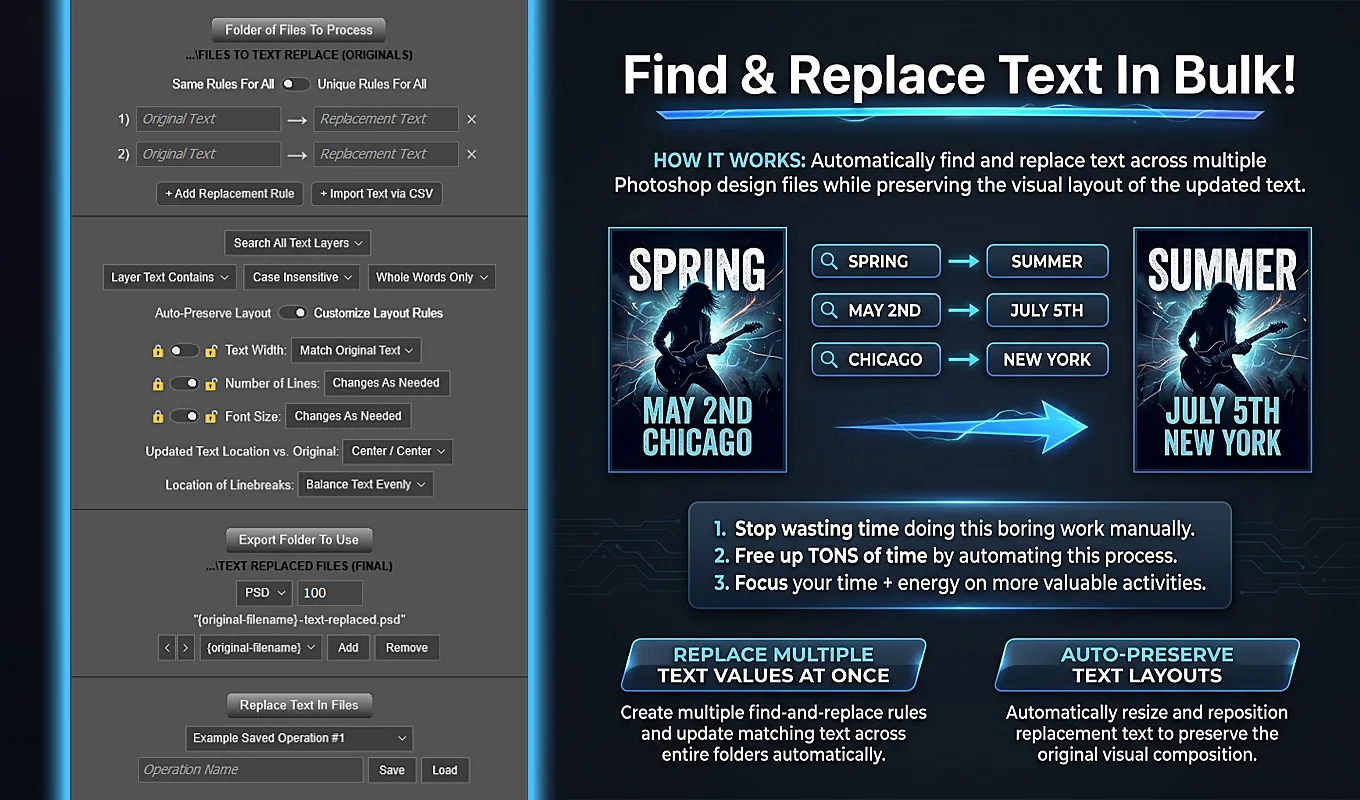
Bulk Text Replacer: Batch-Update Text Layers provides this workflow across folders of files. Its Layer Text Contains setting finds text within eligible Photoshop text layers and replaces every qualifying occurrence. You can also restrict the search to named layers, control case sensitivity and word boundaries, and choose how the updated text should fit into the design.
1. Choose Layer Text Contains for Partial Text Replacement
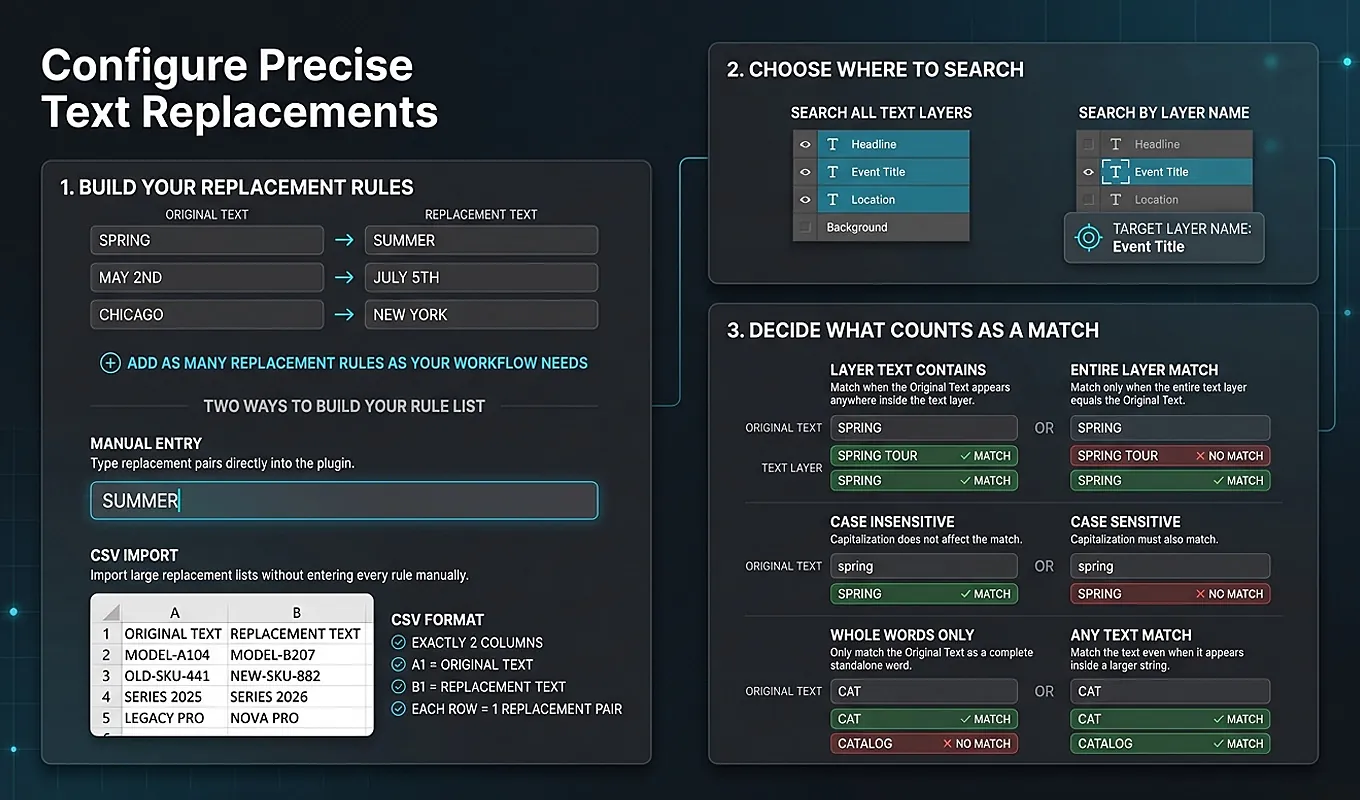
The setting that directly answers this task is Layer Text Contains. Your Original Text does not have to equal everything written in the layer; it can be a phrase within a longer sentence or paragraph.
For example, suppose a layer contains:
Shop our summer sale today. Free shipping on orders over $50.
Set Original Text to “summer sale” and Replacement Text to “winter sale.” With Layer Text Contains, the resulting wording is:
Shop our winter sale today. Free shipping on orders over $50.
The opening words, closing sentence, and shipping threshold are not replaced with the new phrase. The rule targets the matching portion of the content.
Entire Layer Match serves a different purpose. It requires the complete normalized layer contents to equal Original Text. Searching for “summer sale” with that setting would not match the longer example above. When an entire-layer match succeeds, the complete contents become Replacement Text.
For phrase edits inside longer copy, leave the text-match dropdown on Layer Text Contains.
2. Start With Files That Have Editable Photoshop Text
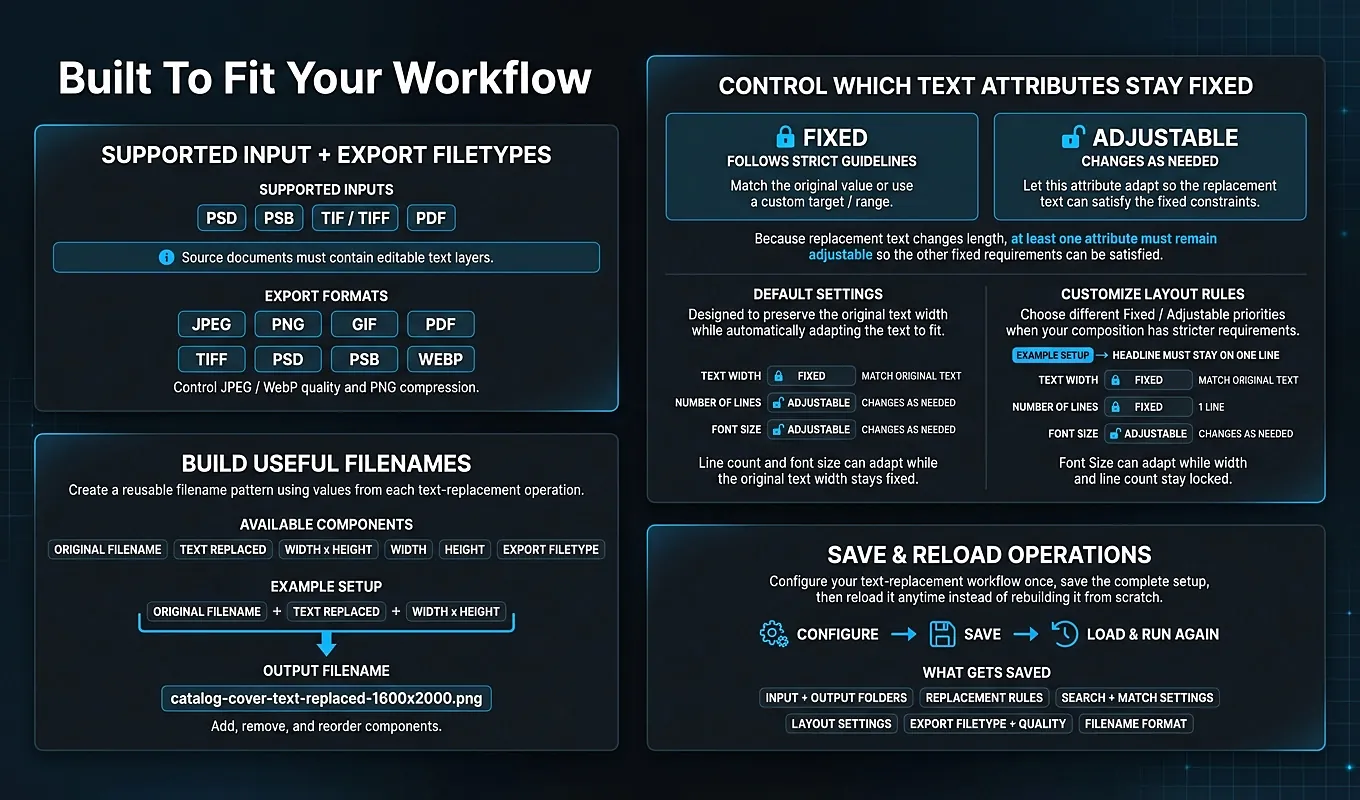
Bulk Text Replacer works on actual Photoshop text layers, not words flattened into image pixels. Accepted batch-input extensions are PSD, PSB, TIFF/TIF, and PDF.
The extension alone does not establish that the text is editable. A PDF or TIFF may display words when opened in Photoshop without containing usable text layers. Files with no Photoshop text layers are skipped and do not produce an export.
Place the supported files you want to update directly inside the selected source folder. The plugin does not process nested filesystem subfolders automatically.
That folder limitation does not apply to the document’s layer structure. Text layers are discovered recursively inside Photoshop groups and nested groups, so your target paragraph does not need to sit at the top of the Layers panel.
3. Turn Your Phrase Settings Into a Folder-Wide Operation
Bulk Text Replacer is available through Adobe Exchange or the Creative Cloud plugin Marketplace. After installation, open it from Photoshop’s Plugins menu and configure the batch:
- Select Folder of Files To Process and choose the folder containing your supported source files.
- Enter the phrase to find in Original Text and the new phrase in Replacement Text. Both fields must contain text.
- Choose Layer Text Contains.
- Select Search All Text Layers or Search By Layer Name, depending on where the phrase should change.
- Set Case Insensitive or Case Sensitive, then choose Whole Words Only or Any Text Match.
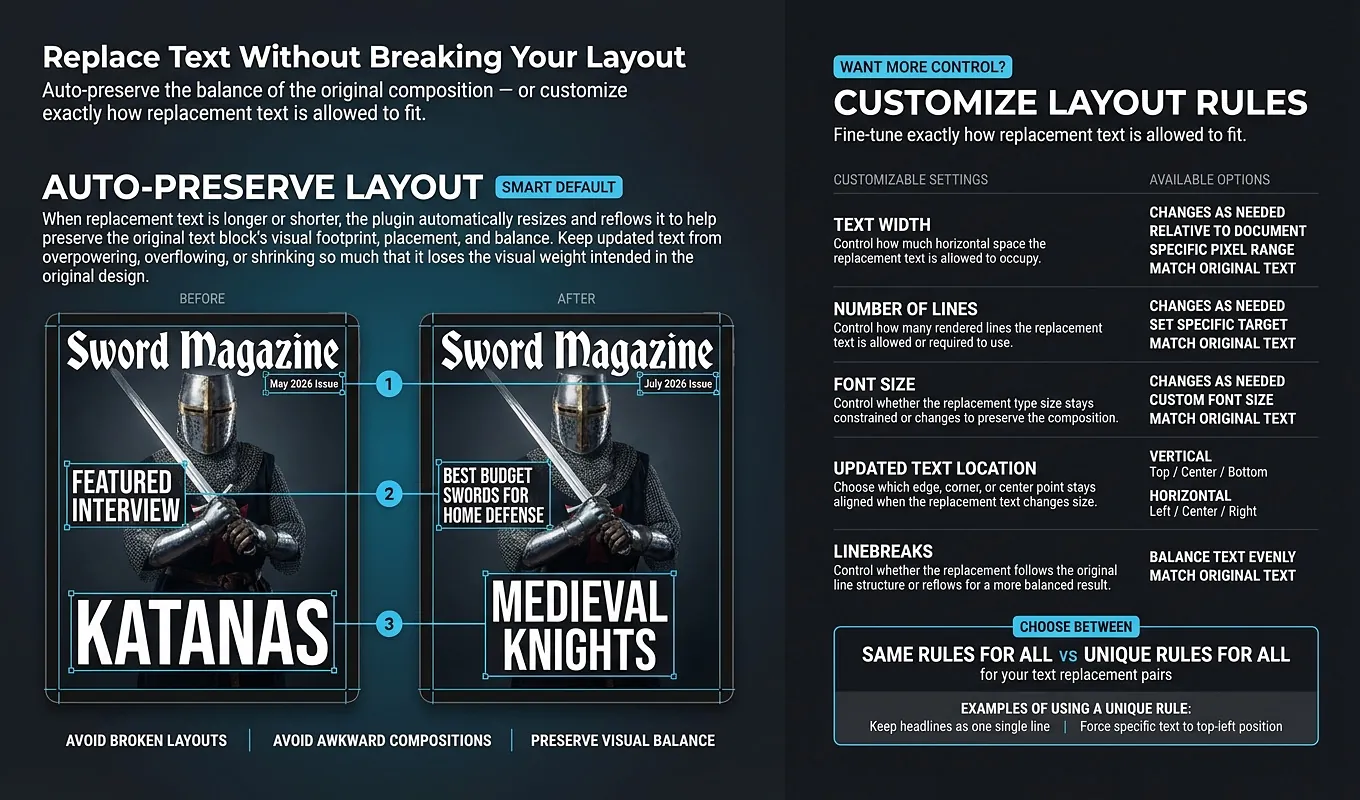
- Choose Auto-Preserve Layout or configure Customize Layout Rules for your design requirements.
- Select Export Folder To Use, choose an output format, and configure the filename.
- Click Replace Text In Files.
Each group of settings has a specific job. Search scope determines which layers are eligible. Matching settings determine which occurrences qualify. Layout settings determine how the changed text is composed afterward.
The plugin repeats that configuration across the supported files directly inside the source folder. Instead of re-entering the phrase and making the same matching decisions in every document, you define the operation once. Each processed document produces a final derivative rather than a separate output for every matching occurrence.
4. Restrict the Search When the Same Phrase Appears Elsewhere
A phrase can appear in several places within one design: a headline, a product description, a footer, and fine print. Partial replacement protects the surrounding wording, but it does not by itself distinguish between those locations.
Use Search By Layer Name when only a particular text layer should be eligible. For example, enter “Product Description” to update a phrase in that layer while ignoring the same phrase in unrelated layers.
Layer-name matching is exact and case-sensitive. “Product Description” does not match “product description.” The separate Case Insensitive text setting does not relax this layer-name requirement.
If several text layers share the exact requested name, the plugin evaluates all of them, including those inside nested groups. Their contents must still satisfy the phrase-matching rule before replacement occurs.
Use Search All Text Layers when the phrase genuinely needs to change throughout the document. Use a named-layer restriction when its meaning depends on where it appears.
5. Control Phrase Boundaries and Capitalization
Layer Text Contains establishes partial matching, but the remaining controls determine how broad that matching should be.
Whole Words Only versus Any Text Match
Whole Words Only is the default and is usually a sensible starting point for phrase replacement. It requires the target to have appropriate word or phrase boundaries rather than occurring inside a larger alphanumeric sequence.
For example, “summer sale” can match in “Our summer sale starts Friday,” but should not match the same character sequence within “summer sales.” Punctuation can provide a valid boundary, so a phrase followed by a period can still qualify.
Any Text Match allows literal substring matching. It is useful when you intentionally need to replace part of a longer string, but it can also change text embedded inside words. Choose it deliberately rather than simply making the search broader.
Case sensitivity and literal characters
Case Insensitive, the default, allows capitalization differences in the source text. Case Sensitive requires the requested capitalization. Choose the capitalization of Replacement Text deliberately; the case setting determines which source text qualifies for replacement.
Original Text is literal, not a regular-expression pattern. Characters such as periods, parentheses, plus signs, and brackets are treated as text to find. You do not need regex syntax to search for a phrase containing punctuation.
6. Account for Repeated Phrases and Stored Linebreaks
With Layer Text Contains, all qualifying occurrences within an eligible layer are replaced—not just the first one.
If the layer reads “Summer sale starts Friday. Shop the summer sale online,” a case-insensitive rule replacing “summer sale” with “winter sale” changes both occurrences. Both still have to satisfy the selected word-boundary setting.
This matters when a paragraph repeats a phrase but only one occurrence should change. A layer-name filter cannot distinguish occurrences within the same layer. Instead, use a longer Original Text value that uniquely identifies the intended passage, with Replacement Text containing the revised version of that passage.
Matching also normalizes certain structural characters. Linebreak and paragraph separators are treated as spaces, tabs become spaces, and certain zero-width markers are removed. A phrase split by a stored linebreak can therefore match a search entered with a space between its words.
This helps the search follow visible wording, but it is not fuzzy matching. Do not assume spelling differences or arbitrary spacing variations will be ignored. Also, matching across a linebreak does not mean that the original linebreak will necessarily remain in the final layout.
7. Preserve Surrounding Wording Without Expecting a Frozen Layout
There are two separate goals here: keeping the words outside the matching phrase and controlling how the complete text layer looks afterward. Partial replacement addresses the first. Layout settings address the second.
Replacing “sale” with “limited-time clearance event” can substantially increase a paragraph’s length even though every surrounding word remains. The layer may need different wrapping, more lines, or a smaller font size.
When the original visual footprint matters most
Auto-Preserve Layout uses the original visible rendered width as its horizontal constraint. It lets Photoshop re-wrap the changed text, adjusts font size to approach the original rendered height, resizes the paragraph-text box, and restores the original Center / Center position.
This is useful when the updated paragraph should remain close to its existing composition. It is an approximate fitting process, not a guarantee of identical appearance. It does not preserve the original line count or explicit linebreak locations, and point text may be converted to paragraph text for controlled wrapping.
When the original font size must stay fixed
Switch to Customize Layout Rules and use this combination:
- Text Width: Fixed, with Match Original Text as the width mode.
- Number of Lines: Adjustable.
- Font Size: Fixed, with Match Original Text as the font-size mode.
This keeps the font size fixed while allowing the revised copy to occupy more or fewer lines within the width constraint. Choose the positioning anchor that fits the design—for example, Top / Left when the top-left visible position should remain stable.
The tradeoff is straightforward: preserving font size may require additional vertical space. Preserving approximately the original footprint may require changing font size. Neither choice turns a partial phrase replacement into an entire-layer content replacement.
8. Design Multiple Rules Around Distinct Targets
You can add several Original Text → Replacement Text pairs to the same batch. Same Rules For All applies one shared search and layout configuration; Unique Rules For All gives each pair its own settings.
However, multiple rules are not a cascading or guaranteed cumulative edit sequence. The plugin captures the source layers’ original text before running the individual rules. Each rule evaluates that original snapshot.
Consider this source layer:
Our summer sale includes free shipping. Offer ends Sunday.
You might create one rule for “summer sale” → “winter sale” and another for “free shipping” → “free delivery.” Both match the original layer, but you should not assume the two changes will combine. A later matching rule can rewrite the layer from its transformation of the original text, superseding an earlier modification.
For this example, a predictable approach is one contains-based rule:
- Original Text: summer sale includes free shipping
- Replacement Text: winter sale includes free delivery
That changes the relevant passage while retaining “Our” and “Offer ends Sunday.” If the edits belong to different layers, Unique Rules For All can instead restrict each rule to its intended layer name.
A rule changing RED to BLUE also does not cause a later BLUE-to-GREEN rule to discover the newly inserted BLUE. Later rules still search the captured original text.
For larger mappings, replacement pairs can be imported from a CSV with exactly two columns headed ORIGINAL TEXT and REPLACEMENT TEXT. Importing saves entry work, but it does not change this rule-interaction behavior.
9. Export Editable Results While Keeping the Originals
Choose PSD output when you want a processed Photoshop document with layers and editable text for further work. PSD is the default export format. PSB is also available as a layered Photoshop-output option.
The plugin modifies text layers during replacement rather than rasterizing them as part of the normal workflow. Delivery formats such as JPEG or PNG do not retain the same editable Photoshop text-layer structure.
Select a destination folder and an identifiable filename format, such as the default original filename followed by “-text-replaced.” The plugin exports the derivative and closes the source document without saving, preserving the original template.
One important distinction: a document with usable text layers can still be exported even when no rule matches. An output file’s existence is therefore not proof that the target phrase was changed.
10. Validate a Representative Test Batch
Before processing the full folder, create a small source folder containing representative supported files. Include a short paragraph, a tightly fitted text box, a layer with repeated occurrences, and a document where the phrase should not change.
Run the intended configuration and inspect the exported results for these points:
- The intended phrase changed, and the surrounding wording remains correct.
- Every qualifying occurrence changed where repeated replacement was intended.
- Named-layer restrictions excluded unrelated text layers.
- Case and word-boundary settings prevented unwanted matches.
- The complete layer remains readable, with acceptable font size, wrapping, and positioning.
- Multiple rules targeting the same source layer did not supersede changes you expected to retain.
If the wording is correct but the composition is not, adjust the layout rules. If the wrong text changes, refine the phrase, search scope, case sensitivity, or word-boundary setting. Separating those two kinds of correction makes troubleshooting much more direct.
Once the test outputs are right, use the same configuration on the full source folder. With Layer Text Contains as the foundation, Bulk Text Replacer gives you a practical way to update phrases across Photoshop files without making each complete text layer read only the replacement phrase.