How To Save Multiple AI Image Variations For Every Text Prompt In A Batch
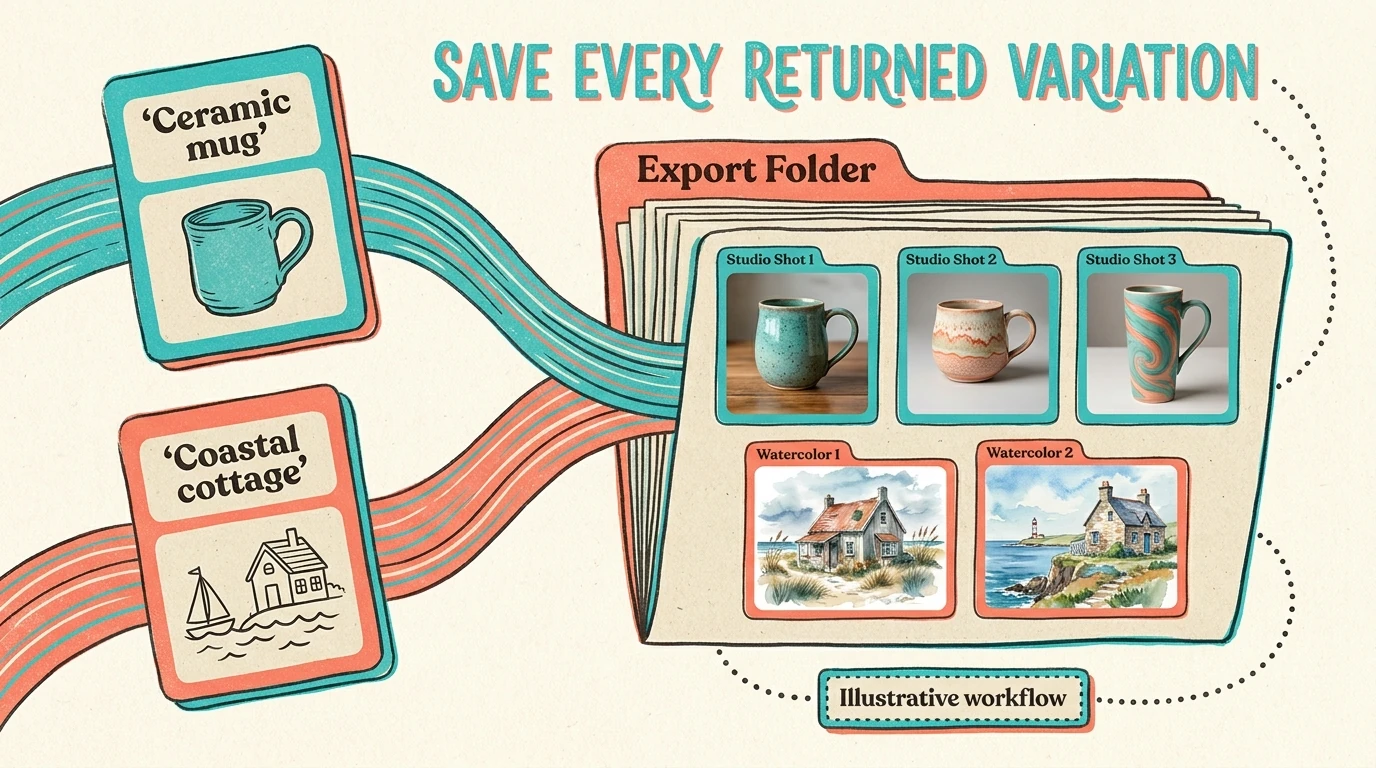
To save multiple AI image variations for every prompt automatically, you need a workflow that handles both the prompt queue and the alternatives returned for each prompt. Generating a batch is only half the task; every variation also needs to be selected, exported, and given a filename that will not overwrite another result.
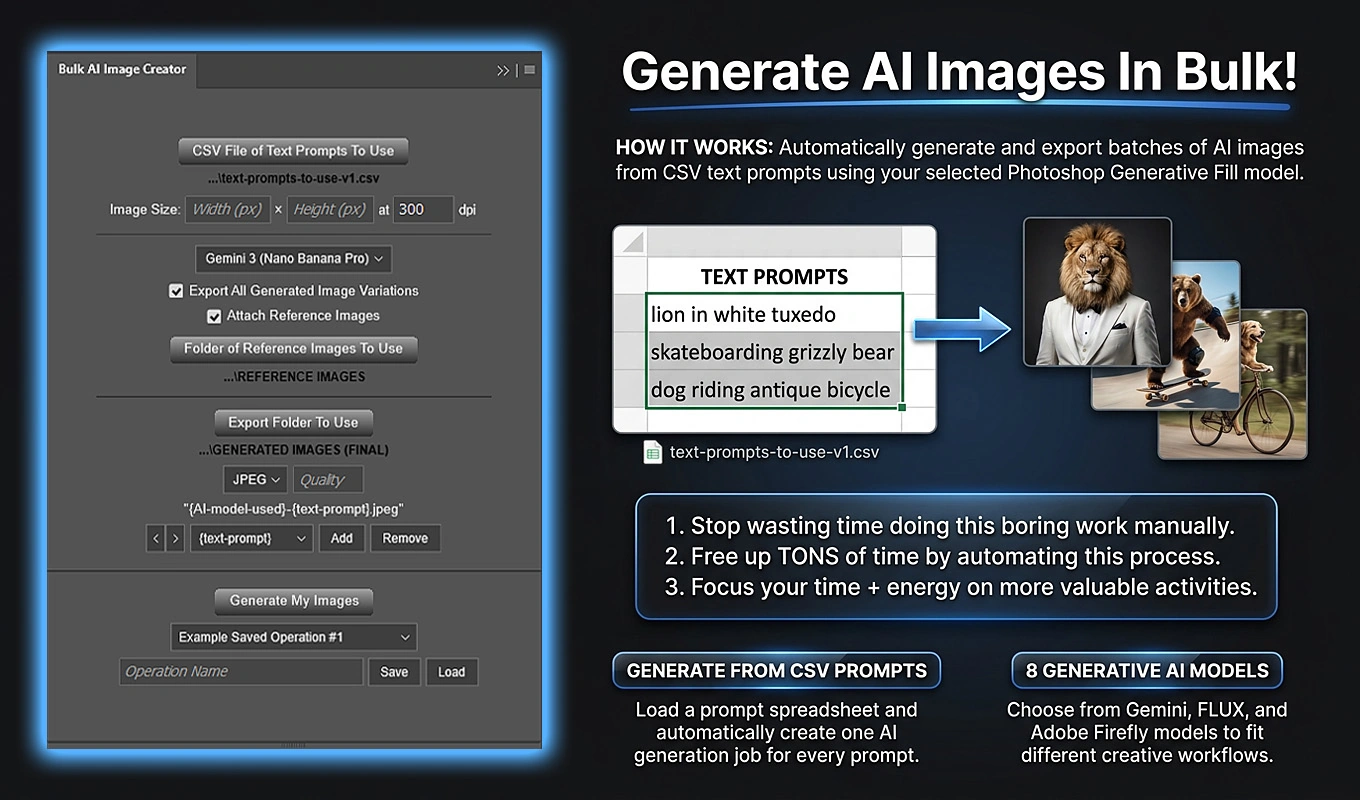
Bulk AI Image Creator: Batch Generative Fill is a Photoshop plugin that automates this process. You supply a CSV of prompts, enable Export All Generated Image Variations, and choose your output settings. The plugin then processes each prompt through Photoshop Generative Fill and saves every variation Photoshop returns.
1. Enable the setting that exports every generated variation
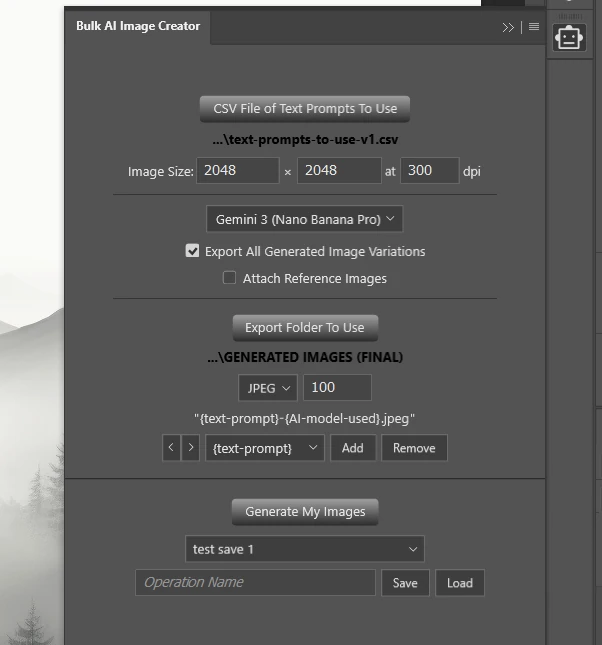
The key control is Export All Generated Image Variations. It is enabled by default in Bulk AI Image Creator, but you should verify that it remains checked before starting your batch.

With this setting enabled, the plugin determines how many variations Photoshop actually produced for the current prompt and exports each one as a separate file. With it disabled, the plugin exports only the first generated variation, even if Photoshop produced additional alternatives.
This is an export choice, not a setting for requesting a particular number of variations. It does not mean “generate exactly three images per prompt” or “repeat this prompt five times.” Its purpose is to preserve all the alternatives returned by each generation operation.
2. Separate the number of prompts from the number of output files
A CSV row represents one prompt-generation cycle. It does not necessarily represent one exported image.
For example, suppose your CSV contains 20 valid prompts. If Photoshop returned three variations for every prompt, exporting all variations would produce 60 files. Exporting only the first variation would produce 20 files, assuming every generation succeeded.
Three variations is only an illustration. The actual number depends on Photoshop and the selected model, and the plugin discovers the available variations after each generation completes.
This distinction matters when planning a batch. A folder containing more files than your CSV contains prompts can be the correct result. Conversely, you should not expect a fixed multiple of the prompt count unless the actual generation results support it.
3. Prepare a CSV with one text prompt per row
The plugin uses a simple one-column CSV structure. Cell A1 must contain the heading TEXT PROMPTS. Your prompts begin in A2 and continue downward in Column A.
A small test file could contain:
- A1: TEXT PROMPTS
- A2: A ceramic coffee mug photographed on a pale blue studio background
- A3: A watercolor illustration of a coastal cottage at sunrise
- A4: A futuristic city street illuminated by neon signs after rain
Each valid, non-empty prompt becomes one generation job. Blank rows are ignored. A usable prompt must contain at least one letter or number; punctuation alone is not accepted.
Leave additional columns empty. This is not a spreadsheet in which Column B controls the model or Column C specifies the number of variations. Unexpected non-empty data outside Column A causes validation to fail.
If a prompt contains commas, keep it within a quoted CSV field. For example, the CSV value "A ceramic mug, soft side lighting, white background" belongs in one field rather than three separate columns. The parser also supports escaped quotation marks represented by doubled quotation marks inside a quoted field.
4. Run an all-variations batch from beginning to end
Install Bulk AI Image Creator: Batch Generative Fill through Adobe Exchange or Adobe’s Creative Cloud plugin marketplace, then open it from Photoshop’s Plugins menu.
- Select CSV File of Text Prompts To Use and choose your prepared CSV.
- Enter the target Width, Height, and DPI. For example, you might use 2048 × 2048 pixels at 300 DPI, provided those dimensions suit your project and the selected model.
- Choose one supported AI model. Gemini 3 (Nano Banana Pro) is the default. The selected model, dimensions, and DPI apply to every prompt in this operation.
- Confirm that Export All Generated Image Variations is enabled.
- Select Export Folder To Use. Choose the export filetype and, where editable, the desired Quality.
- Set your filename components. Including both {text-prompt} and {AI-model-used} makes the resulting files easier to identify.
- Click Generate My Images. Review the Generative Credits confirmation, check the required acknowledgement, and click Confirm to begin.
The plugin validates the operation before generation starts. It then processes the valid CSV prompts sequentially, exporting the available variations for each successfully generated prompt before moving to the next one.
You do not need to click through the alternatives yourself or manually issue a separate export command for each image.
5. Understand what happens between one prompt and the next
For each prompt, the plugin submits a Generative Fill request through Photoshop using the batch’s selected settings. It waits for Photoshop to finish, then determines how many variations are available.
With all-variations export enabled, it selects a variation, exports it, selects the next available variation, and continues until every returned alternative has been saved.
After those exports are complete, the plugin clears that prompt’s generated variations and proceeds to the next CSV prompt. This creates a repeated sequence of generation, variation export, cleanup, and progression through the prompt list.
The important result is that each prompt’s alternatives are handled before the next prompt begins. You are not left with a completed prompt list and a second manual task of opening every generation to save its remaining options.
6. Put the prompt and model in each filename
Saving every variation is much more useful when you can tell which request produced it. The default filename structure combines {text-prompt} and {AI-model-used}.
The prompt component becomes a filename-safe version of your text: trimmed, lowercased, dash-separated, sanitized, and shortened where necessary. The model component identifies the selected model in a normalized form, such as gemini-3-nano-banana-pro.
You can also include {width}x{height}, individual width or height components, or {export-filetype}. Adding dimensions can be helpful when you run the same prompt library for different output sizes.
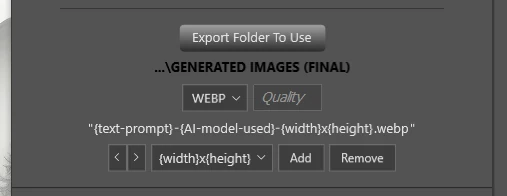
Do not treat the filename as a complete archive of the original prompt. The prompt-based component is limited to approximately 80 characters before it is combined with the other components. Keep the source CSV if you need the full wording later.
7. Expect numbered filenames for variations with the same base name
Several variations from one prompt naturally share the same prompt, model, dimensions, and export format. Those filename components alone cannot distinguish one alternative from another.
The plugin uses duplicate-safe numbered filenames so that one export does not overwrite another. A JPEG set can look like this:
- ceramic-coffee-mug-gemini-3-nano-banana-pro.jpg
- ceramic-coffee-mug-gemini-3-nano-banana-pro (2).jpg
- ceramic-coffee-mug-gemini-3-nano-banana-pro (3).jpg
The shared base name keeps related images recognizable, while the suffixes distinguish files that would otherwise have identical names.
Numbering is also useful when different prompts produce the same sanitized filename text. You do not need to add artificial differences to your prompts simply to prevent filename collisions.
8. Choose the format in which each variation should be saved
Bulk AI Image Creator supports JPEG, PNG, GIF, PDF, TIFF, PSD, PSB, and WebP output. The selected format applies across the operation, so every exported variation uses that batch’s export configuration.
Choose according to what you intend to do with the alternatives:
- JPEG is a practical choice for general image delivery and review when lossy compression is acceptable.
- PNG is useful when you want lossless image output.
- WebP provides lossy output with an editable Quality setting.
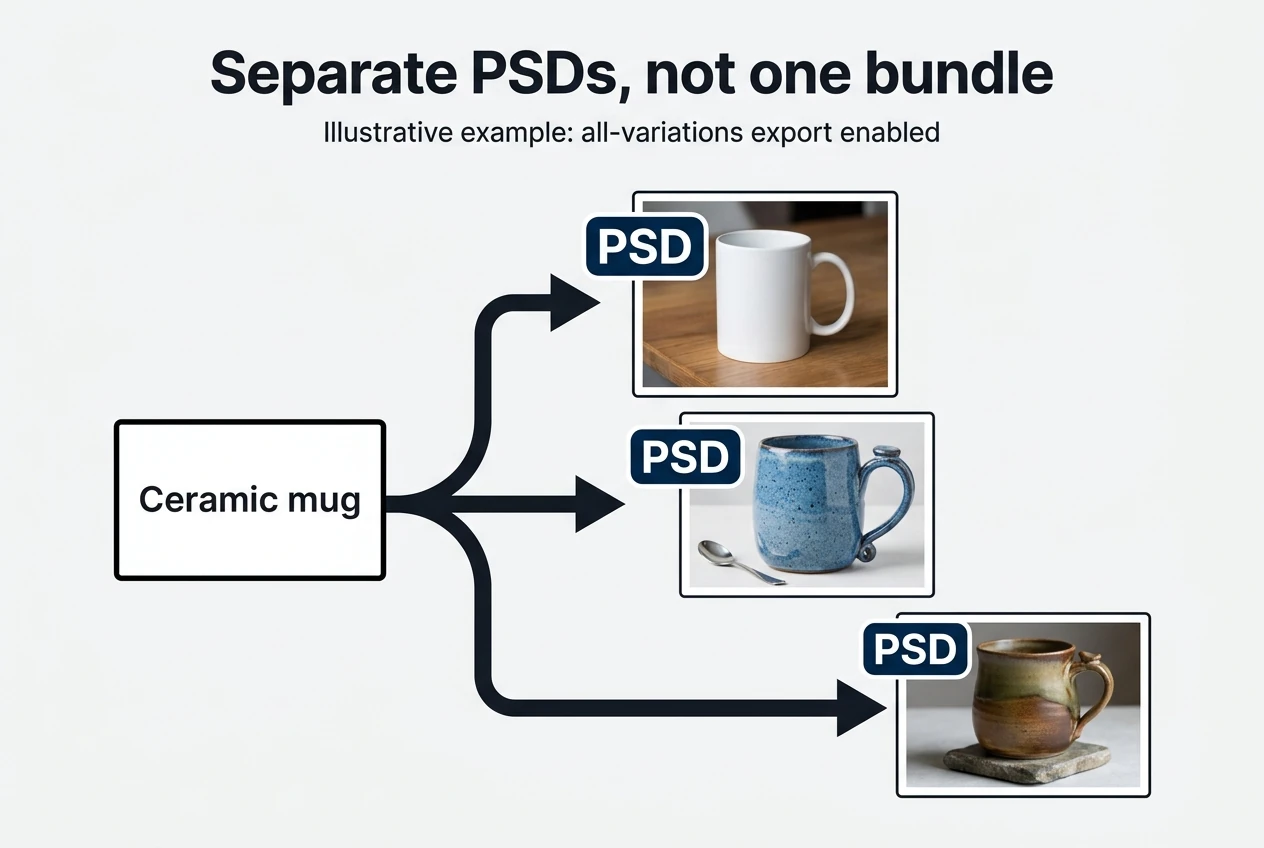
- PSD or PSB provides a Photoshop-document output pathway.
JPEG, PNG, and WebP expose an editable Quality value from 0 through 100. For PNG, this controls compression rather than introducing lossy image degradation. The other supported formats use Quality 100 in the interface.
Most importantly, choosing PSD does not replace all-variations export. The plugin should not be treated as guaranteeing that one PSD contains every alternative Photoshop generated. Variations are exported individually according to the all-variations setting.
9. Review Generative Credit usage before authorizing the batch
The plugin uses Photoshop’s own generative functionality, which can consume Adobe Generative Credits. Owning the plugin does not provide a separate pool of credits or make generation unlimited.
Before generation starts, the Confirm Before Proceeding dialog requires you to acknowledge the credit-consuming operation. Clicking Confirm without checking that acknowledgement does not start the batch.
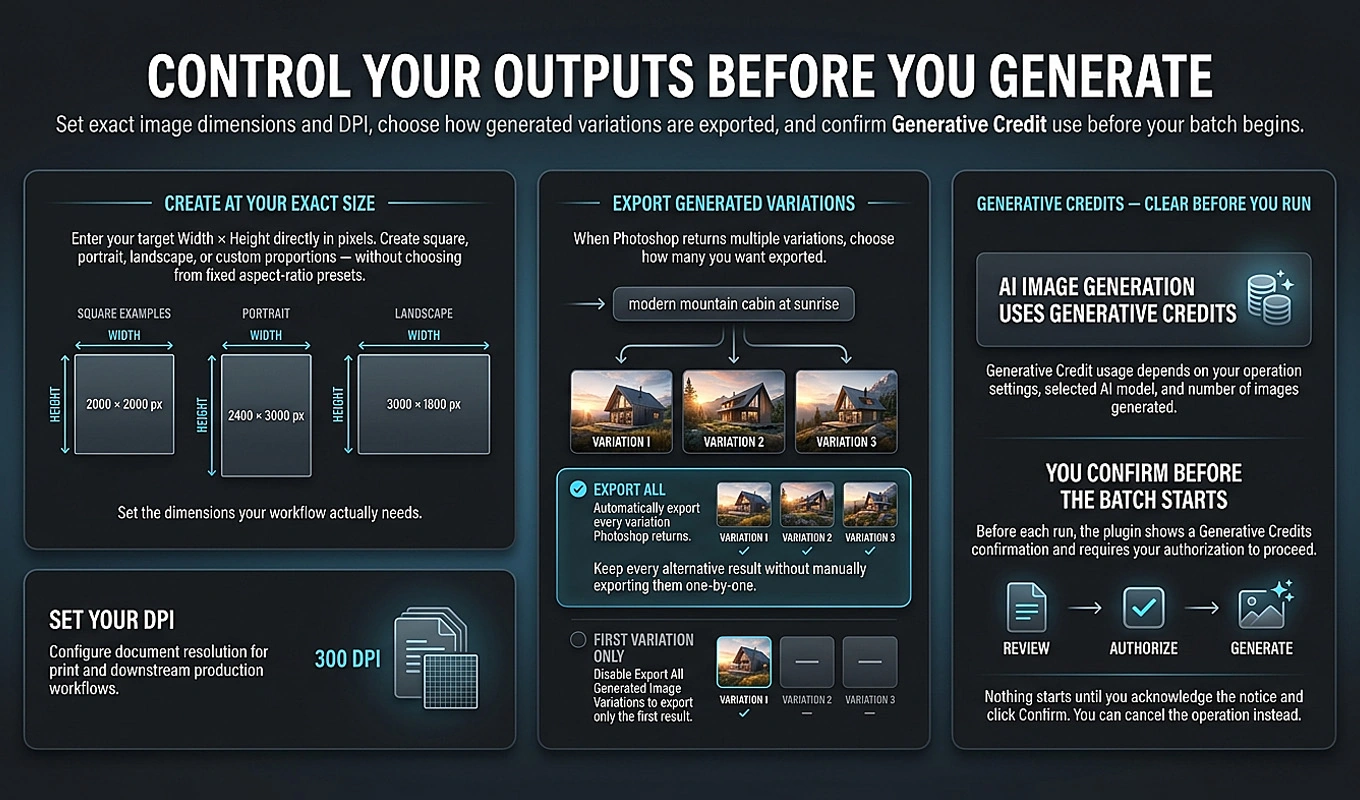
Review the prompt count, selected model, and overall generation settings before accepting. Actual credit usage depends on Adobe’s current policies, the model, and the operation being performed; the plugin does not predict an exact total in advance.
Also avoid treating the final number of exported files as an exact credit calculation. A file count tells you how many images were saved, not the authoritative cost of the underlying Photoshop generation operations.
10. Test a few prompts before expanding the batch
Before submitting a large prompt library, prepare a separate CSV containing a few representative prompts and run it with your intended settings. That test is a real generation operation and can consume Generative Credits, but it gives you a manageable set of results to inspect.
Use the test to answer specific questions:
- Does the selected model produce useful alternatives for these prompts?
- Are the chosen dimensions appropriate for the intended use?
- Are multiple returned variations being saved as separate files?
- Do the filenames make the prompt groups easy to recognize?
- Does the chosen format and Quality suit your review or delivery workflow?
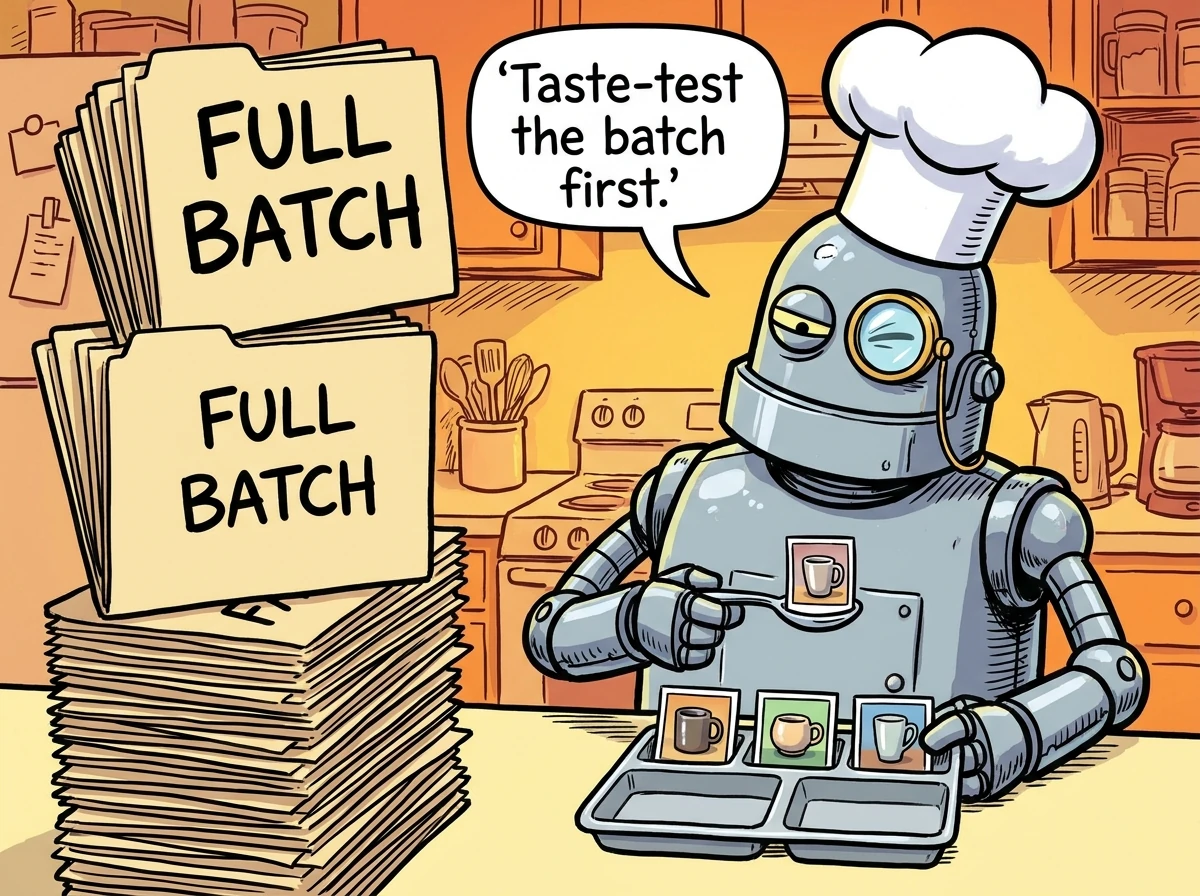
If the setup needs adjustment, change it before running the full CSV. This is especially useful when switching models or changing the output format, because the usefulness and organization of a small batch are easier to evaluate than those of a large folder of results.
11. Read progress as completed prompt operations, not saved variations
During processing, the progress interface displays Generating Your Images..., status text, a progress bar, a completed-generation count, and Cancel Operation.
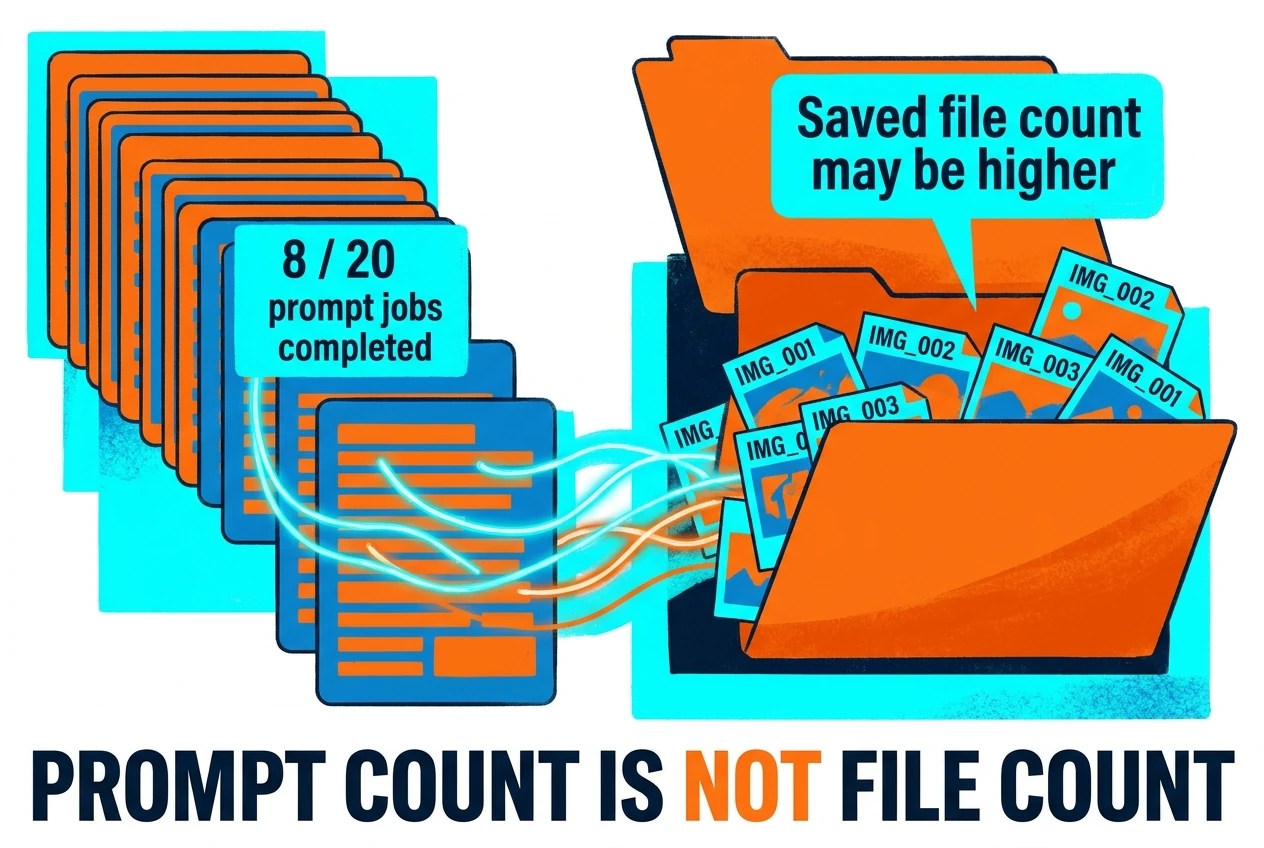
A counter such as 8 / 20 images generated refers to completed CSV prompt operations. It does not mean that only eight variation files have been exported. If those completed prompts returned several alternatives each, the output folder can already contain substantially more files.
You can request cancellation with Cancel Operation or the Escape key while the progress interface is active. Photoshop may temporarily control the application while an active Generative Fill request completes, so cancellation is most reliably handled between generative operations.
Keep those two ideas separate: the progress counter tracks advancement through the prompt queue, while the export folder contains the individual variation files produced along the way.
12. Check that the finished batch contains usable variation sets
When all prompts complete successfully without cancellation, the plugin displays Image Generations Completed! and confirms that the operation is completely finished.
A useful final check is not simply “does the folder contain images?” Check whether the folder contains the variation sets you intended to preserve.
- Confirm that filenames identify the prompts and model well enough for review.
- Look for separate numbered files where a prompt returned multiple alternatives.
- Open representative files to check dimensions, format, and visual suitability.
- Remember that the total file count can exceed the number of CSV prompts.
- Do not expect every prompt to produce an assumed fixed number of files.
If the output appears to contain only one file per prompt, verify whether Export All Generated Image Variations was enabled. However, one file alone does not prove a setting error: Photoshop may have returned only one variation for that generation.
Once the files are saved, you can review the alternatives together and choose the strongest images without first having to export them individually from Photoshop.
13. Save the configuration for the next prompt library
If saving all variations is part of your regular workflow, use Saved Operations rather than rebuilding the same setup for every project.
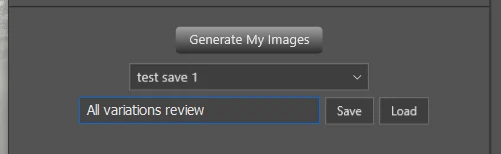
Enter an Operation Name and click Save. A saved operation can retain the CSV and output-folder references along with dimensions, DPI, model, Export All Generated Image Variations state, filename components, export filetype, and Quality.
Later, select the saved operation and click Load to restore its configuration. Review the CSV selection and output destination before running, particularly when adapting an existing operation to a new project. Saved operations retain a reference to the CSV, not an embedded copy of all its contents; moved or unavailable resources may need to be selected again.
Bulk AI Image Creator: Batch Generative Fill is available through Adobe Exchange. For this workflow, the essential setup is straightforward: prepare one prompt per CSV row, enable Export All Generated Image Variations, choose identifiable filenames, and authorize the batch. Photoshop generates the alternatives, and the plugin handles saving them prompt by prompt.